Stock Transfer POS for Quick, Recorded Inventory Flow
Move stock between branches and warehouses with full records.
Transfer stock between branches with proper notes. The receiving branch confirms, and you can see what is still on the way.
SoftBar transfers stock with transfer notes, confirmation by the receiving branch and in-transit tracking, so nothing goes missing on the way.
- Transfer notes
- Receive and confirm
- In-transit stock

SoftBar Stock Transfer Features
Recorded, confirmed movement of stock.
Transfer notes
Items and quantities sent.
Receive and confirm
Branch confirms what arrived.
In-transit stock
See goods on the way.
Transfer history
Every transfer on record.
Transfer requests
Branches request what they need.
Auto suggestions
Balance stock between branches.
What Is Stock Transfer in a POS System?
A stock transfer moves goods from one location to another inside your business: warehouse to branch, branch to branch or shop to godown.
Informal transfers, done with a phone call and a rider, are where much stock disappears. The sending branch reduces stock, the receiving branch forgets to add it, and nobody notices.
SoftBar creates a transfer note, keeps the goods in transit until the receiving branch confirms the exact quantities, and reports any difference.

Problems Businesses Face Without Stock Transfer
Stock lost in transit
No confirmation.
Wrong quantities
Not checked on arrival.
Branch imbalance
One has excess, another shortage.
No requests
Branches call for stock.
Paper notes
Lost or unclear.
No history
Who moved what.
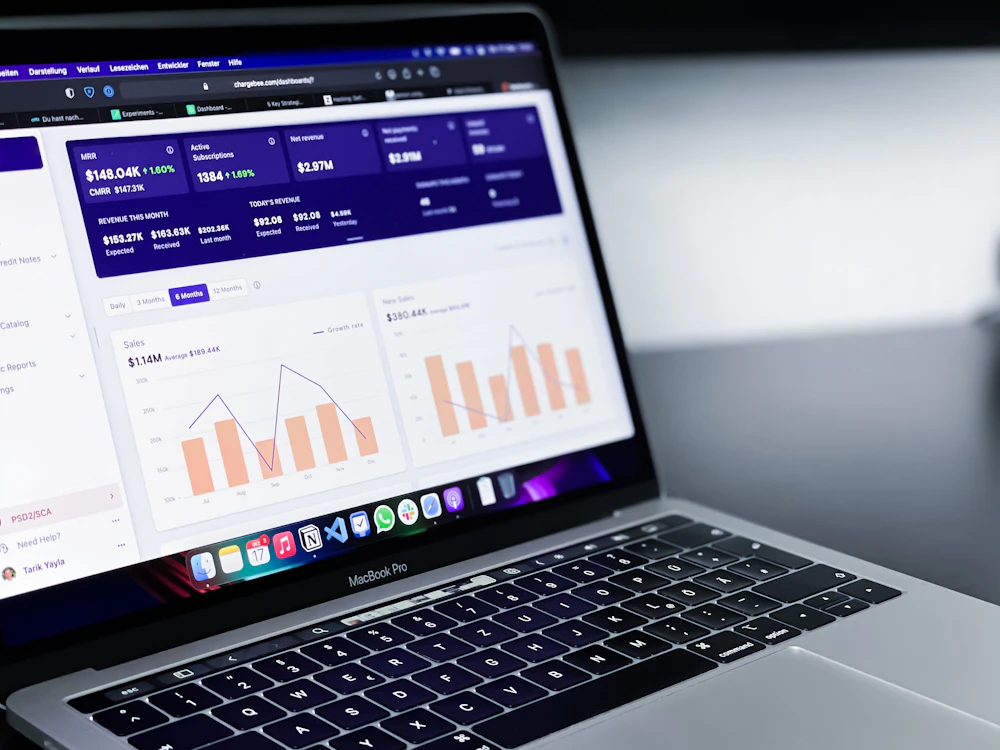
Insights from Stock Transfer
Transfer reports keep branches balanced and honest:
- Transfers by branch and period
- Pending in-transit transfers
- Differences on receipt
- Most transferred items
- Requests vs sent
- Branch stock balance
How Stock Transfer Works in SoftBar
Request
Branch asks for items.
Send
Transfer note created.
Receive
Branch confirms quantities.
Close
Differences reported.
Core Features of SoftBar Stock Transfer
Requests
Organized demand.
- Branch requests
- Approval
- Suggested quantities
- Request status
Dispatch
Recorded sending.
- Transfer notes
- Barcode scanning
- Batch selection
- Printed slips
Receiving
Confirmed arrival.
- Receive by scan
- Short and excess
- Damaged on arrival
- Confirmation
Tracking
Full visibility.
- In-transit stock
- Transfer history
- Difference reports
- Alerts for pending
See Stock Transfer working with your own data
Book a free demo and we will set it up around your business.
Benefits of Stock Transfer
Recorded transfers stop leakage between locations.
No lost stock
Confirmed receipts.
Balanced branches
Move instead of buy.
Accurate stock
Both sides updated.
Fewer calls
Requests in system.
Accountability
Who sent and received.
Faster restocking
Suggestions.
How Your Team Uses Stock Transfer
Owner
Sees the results of stock transfer on the dashboard and gets alerts on the phone, without asking staff.
Manager
Sets the rules, approves exceptions and reviews stock transfer reports every day.
Staff
Use stock transfer on simple screens built into their daily work, with fewer clicks.
Accountant
Gets correct entries and ready reports, with no re-typing at month end.
Tips to Get the Most From Stock Transfer
Never skip confirmation
Receiving closes the loop.
Scan items
Avoid counting errors.
Use requests
Branches ask in the system.
Review pending daily
Close open transfers.
Investigate differences
Act the same day.
Transfer before buying
Use existing stock.
Businesses That Use Stock Transfer
Businesses with branches or warehouses.
Works With the Rest of SoftBar
Stock Transfer is not a separate program. It shares the same products, customers, stock and accounts as every other part of SoftBar POS and ERP, so data entered once is available everywhere and reports always match.
Start with the modules you need today and switch on more as your business grows. Your data, users and settings stay the same.
More stock & branches modules
Why Businesses in Pakistan Choose SoftBar
Software, setup and support from one local team.
Local team in Faisalabad
Meet us, call us or message us on WhatsApp. The same team sets up and supports your system.
Set up around you
We configure products, users, reports and modules for the way your business works.
One connected system
POS, inventory, accounts, HR and integrations share the same data.
Built for local conditions
Offline billing, Urdu-friendly receipts and support for local payment and tax requirements.
Quick to start
Most businesses are live within days, with their own data imported.
Marketing under one roof
We also run ads, SEO and social media to bring you more customers.
Secure, Cloud-Based and Supported Locally
Cloud backups
Data backed up automatically.
Works offline
Billing continues without internet.
Role-based access
Each user sees only their part.
Faisalabad support
Help on WhatsApp and phone.
Manual Work vs SoftBar Stock Transfer
What changes when this work moves from registers, Excel and phone calls into SoftBar.
| Area | Manual way | With SoftBar |
|---|---|---|
| Speed | Typed or written by hand, slow at busy times | A few clicks or a barcode scan |
| Accuracy | Copy mistakes and missing entries | Data entered once and reused everywhere |
| Visibility | Known only to the person who wrote it | Live on the owner's phone and dashboard |
| Control | Anyone can change records | Permissions, approvals and activity logs |
| Reports | Prepared in Excel at month end | Ready any time, exportable to Excel and PDF |
| Customers and partners | Phone calls for every update | Automatic SMS and WhatsApp messages |
Getting Started With Stock Transfer: Checklist
A short list to prepare before your setup session with our team.
- Your current product, customer and supplier lists
- Names and roles of staff who will use it
- The reports you check most often today
- Your rules for discounts, approvals and credit
- Printers, scanners or devices you already have
- A date to go live, ideally at the start of a week
We do the setup with you
Our team imports your data, configures stock transfer and trains your staff. Most businesses are live within a few days.
Frequently Asked Questions About Stock Transfer
What if fewer items arrive than were sent?
The receiving branch records what arrived and the difference is reported.
What if fewer items arrive?
The receiving branch records actual quantities and the difference is reported.
Can branches request stock?
Yes. Requests with approval.
Can I see stock in transit?
Yes. Until confirmed.
Is Stock Transfer included in SoftBar POS?
Stock Transfer is part of SoftBar POS and ERP and can be switched on for your account. We set it up to match your workflow.
Can I try it before buying?
Yes. Book a free demo and we will show this module with your own products and data.
Does it work on mobile phones?
Yes. SoftBar runs in the browser on phones, tablets, laptops and PCs, so owners and managers can check and approve from anywhere.
Does it work without internet?
Billing and daily work continue offline and sync automatically when the connection returns.
Is my data safe?
Data is kept on secure servers with regular backups, encrypted connections and role-based access for every user.
How do I get a demo?
Press Request a Free Demo or WhatsApp 03028603894.
All POS modules
Ready to Use Stock Transfer in Your Business?
Talk to our team in Faisalabad. The demo and setup consultation are free.